Key takeaways
- Looker Studio is now called Data Studio, and native scheduled delivery to Slack is a Data Studio Pro feature. Free accounts need a workaround.
- Track each AI engine separately in your weekly report. ChatGPT, AI Overviews, Perplexity and Copilot behave very differently week to week.
- The pipeline has three parts: a tracker with a connector or export, a Data Studio dashboard, and a scheduled Slack delivery.
- Add an annotations block to the report so metric shifts caused by model updates do not get blamed on your team.
- Keep the weekly report to one page. The deep dive belongs in the dashboard, not the Slack message.
Why a weekly report beats a dashboard people forget
Most AI visibility dashboards die the same way. Someone builds them in a burst of enthusiasm, shares the link once, and nobody opens it again. A scheduled report in Slack fixes the habit problem. The numbers arrive in the channel where the team already talks, on the same day every week, and somebody eventually says "wait, why did Perplexity drop?"
Weekly is the right cadence for most teams. Daily data on AI answers is noisy, and monthly is too slow to react to anything. This tutorial walks through the whole setup: choosing metrics, wiring data into Looker Studio, and scheduling the Slack delivery.
One naming note first. Google has renamed Looker Studio to Data Studio, and its documentation now says "Looker Studio is now called Data Studio." Plenty of tutorials and connector pages still use the old name. I use both here, and they mean the same product.
Step 1: Decide what goes in the report
Before you touch any tool, decide what the report says. A weekly report that tries to show everything shows nothing. I'd keep it to five to seven numbers, with each engine broken out separately.
Metrics worth including
- Visibility score or share of voice for your tracked prompts
- Average position when you are mentioned
- Citation count and which of your pages get cited
- Sentiment trend
- Share of voice versus two or three named competitors
- AI-referred sessions and conversions, if your tool or analytics can supply them
- Top five prompts gained or lost this week
Why you must split by engine
Promptwatch's Average Sources Per Response report shows why blended numbers mislead. ChatGPT cites about 5 sources per web-search answer, and that average drifts with model and retrieval updates. Google AI Overviews cites about 10 and holds steady. Perplexity cites almost exactly 10 every day. Copilot swung from under 2 to nearly 17 sources within a few weeks before settling at the low end.
The practical consequence: a weekly change in sources per response on Copilot is more likely noise from Microsoft than a result of your work. Perplexity is the cleanest engine for judging whether your own changes had an effect. Judge Copilot on monthly trends, not weekly snapshots. Build the dashboard so every engine has its own row or tab.
Annotate known shifts
Some movements are not yours. Promptwatch Data shows average citations per ChatGPT response dropping around the GPT-5.3 rollout on March 4, 2026 (see the ChatGPT citation drop report). If your report had no note about that, someone would have spent a week looking for a content problem that did not exist. Keep a simple annotations table (date, event) and show it beside your trend chart.
Step 2: Pick a tool that can feed Data Studio
Your dashboard is only as good as the data source. You need a tracker that either has a native Looker Studio connector, a community connector, or an export you can push to Google Sheets or BigQuery.
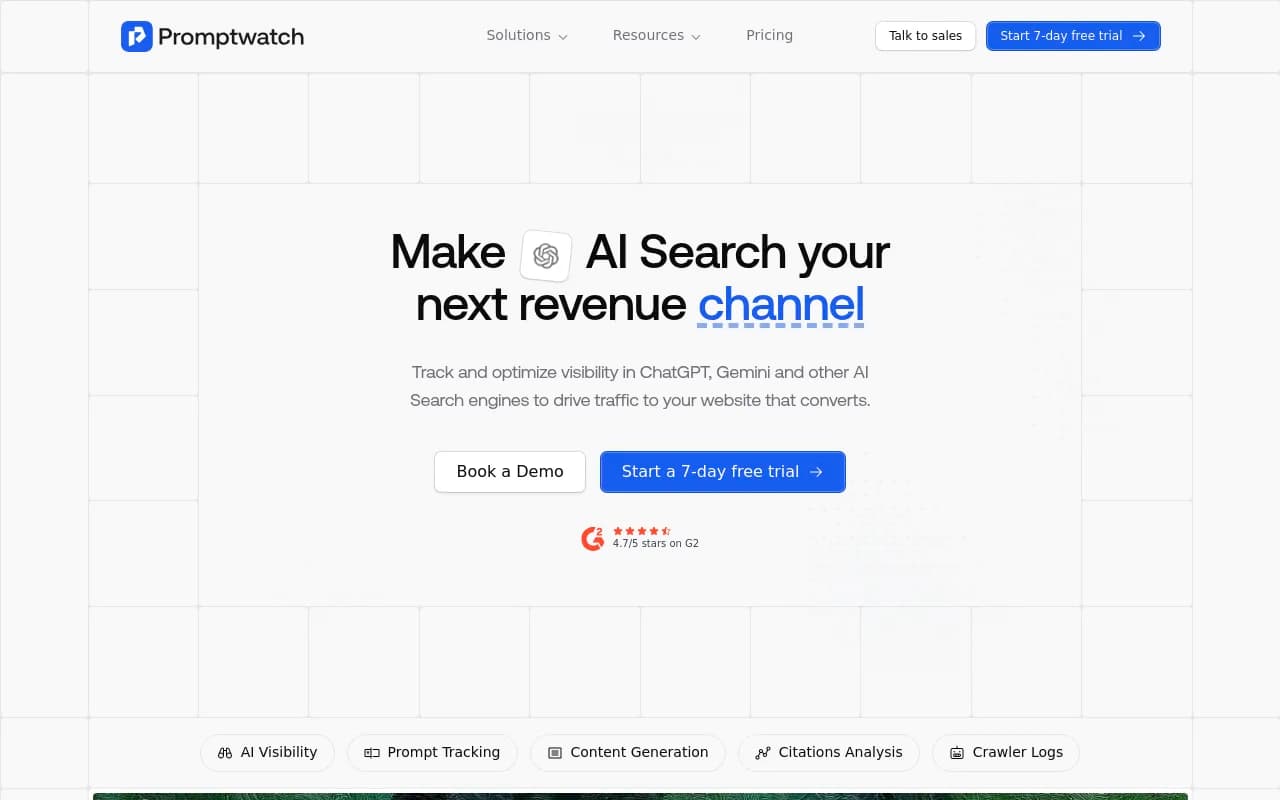
Promptwatch has a Looker Studio connector (on Professional and above), along with scheduled PDF reports, CSV and Excel exports, a REST API and Slack integration. It tracks the real interfaces of ChatGPT, Google AI Overviews, AI Mode, Gemini, Perplexity, Copilot and others, so the per-engine split from Step 1 is available out of the box. Its crawler logs and visitor analytics also let you put AI-referred traffic next to visibility scores, which most trackers cannot do.
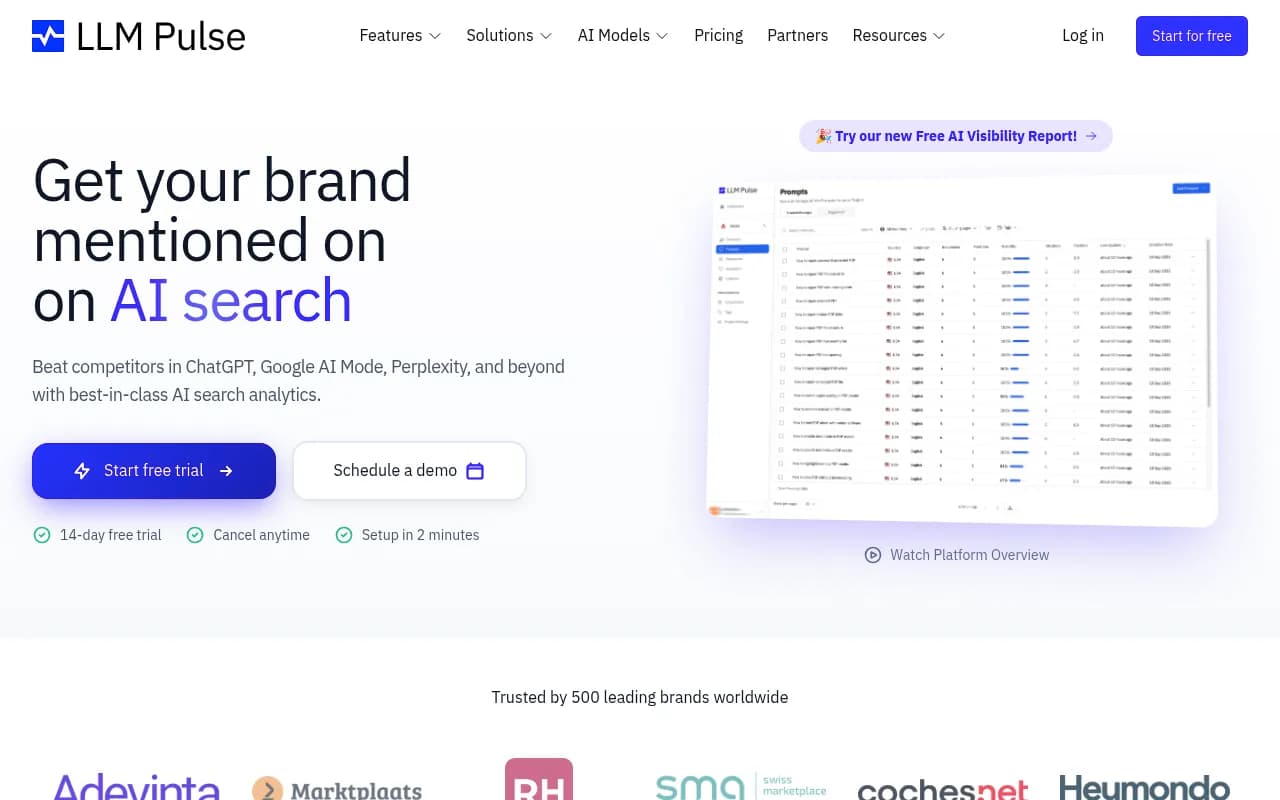
Otterly.AI has published a Data Studio connector for AI search visibility data, and LLM Pulse offers a free Looker Studio template paired with a community connector. I could not load the Otterly page during research because of a bot challenge, and I did not verify connector pricing for either tool, so check current details on their sites.

| Tool | Looker Studio route | Other reporting options | Notes |
|---|---|---|---|
| Promptwatch | Native connector (Professional and up) | Scheduled PDFs, CSV/Excel, REST API, Slack, MCP | Also adds crawler logs and AI traffic data |
| Otterly.AI | Published Data Studio connector | Not verified | Page blocked during research; confirm details |
| LLM Pulse | Community connector plus free template | Not verified | Template refreshes when the report is opened |
| Any tracker with CSV export | Google Sheets as the bridge | Varies | Works, but more manual |
If you want a wider list of trackers with reporting features, the GEO software directory is a decent place to compare.
Step 3: Build the Data Studio report
The general build is the same regardless of tracker.
Connect the data source
- Open Data Studio and create a new report.
- Add data and search for your tracker's connector, or choose Google Sheets if you are going the export route.
- Authorize the connection with your tracker's API key or account.
- Pick the project or monitor you want to report on.
If you are new to the product, the Porter Metrics tutorial on YouTube covers connecting data, scorecards, time series charts, date range controls and scheduled email delivery in one long walkthrough. Skip to the chapters you need.
Lay out one page
A layout that works for a weekly Slack snapshot:
- Top row: scorecards for visibility score, share of voice, average position and sentiment, each with a comparison to the previous period
- Second row: a time series per engine, last 8 to 12 weeks
- Third row: a table of prompts that gained or lost the most this week
- Bottom: top cited pages and an annotations box
Use the date range control set to "last 7 days" with comparison to the previous period. Scheduled deliveries render the report as it looks at send time, so a fixed absolute date range will show stale data forever. That is a mistake I have seen more than once.
Set up one report page per audience
If executives and the content team want different things, make separate pages and choose which pages to include in each delivery. Executives get the one-page summary. The content team gets the prompt-level table.
Step 4: Connect Slack to Data Studio
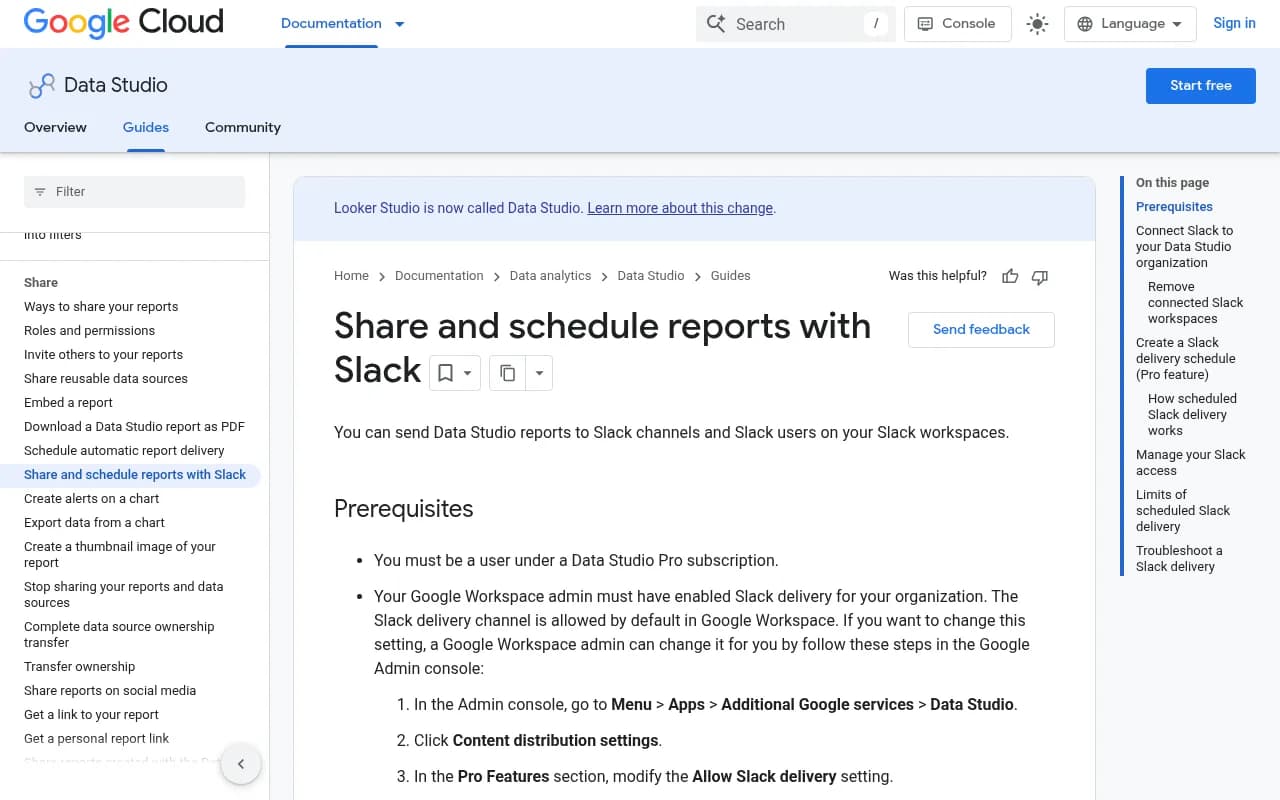
Native scheduling to Slack is a Data Studio Pro feature, per Google's Slack delivery documentation. Before you start, check two prerequisites:
- You must be a user under a Data Studio Pro subscription.
- A Google Workspace admin must allow Slack delivery. It is allowed by default. If it has been turned off, the setting lives under Admin console, Apps, Additional Google services, Data Studio, Content distribution settings, Pro Features, then "Allow Slack delivery".
A Pro admin then connects the workspace:
- Click the Settings icon and select Enterprise admin.
- In the Slack Integration section, click Add Slack Workspace.
- Sign in to Slack when prompted.
You can remove a connected workspace from the same screen with Delete. I did not pull the Pro per-user pricing during research, so check Google's current pricing before committing.
Step 5: Schedule the weekly delivery
With Slack connected, open the finished report and schedule it.
- Click Share, then Schedule delivery.
- Set Destination to Slack.
- Choose a workspace if several are connected, and click Sign in with Slack if prompted.
- In Send to, choose Channels, Users or Manual ID.
- Optionally add a custom message and select which report pages to include.
- Set the start date and time, then set the frequency to weekly.
Pick a time that lands before your Monday stand-up. Early Monday morning in your team's time zone works well, because the report is the first thing in the channel when people open Slack.
Using Manual ID for private channels
If the channel is not in the picker, copy the IDs from the Slack web URL, which looks like .../client/T0123456789/C01ABCD1234. IDs starting with C are public channels, G are private channels and D are users. The first segment (T...) is the workspace, the second is the destination.
Pitfalls from the docs
- You can add several channels or several users to one schedule, but you cannot mix channels and users in the same schedule. Make two schedules if you want both.
- Custom messages are not available for reports in the "Owned by me" folder. Upgrading the report to Pro removes the limitation, so move it to a Pro-owned location if you want an intro message.
The docs also have sections on delivery limits and troubleshooting. I could not capture those, so read them before you rely on this for a client deliverable.
Write a useful custom message
The attached report gets glanced at. The message gets read. Use it to say what to look at, for example: "Weekly AI visibility. Check the Perplexity row first (cleanest signal). Copilot moves are noisy, ignore unless it holds for 4 weeks." That one sentence saves a lot of misread charts.
Step 6: Workarounds if you are not on Pro
Not every team wants another per-seat subscription for a Slack post. Options:
- Email delivery. Data Studio can schedule email delivery of a report without Pro, and Slack can ingest email into a channel via its email address feature. It is clumsy but free.
- Third-party snapshot tools. A Reddit thread from around January 2023 mentions lookerforslack.com for daily, weekly or monthly snapshots in Slack. I did not verify its pricing or whether it is still maintained, so treat it as a lead, not a recommendation.
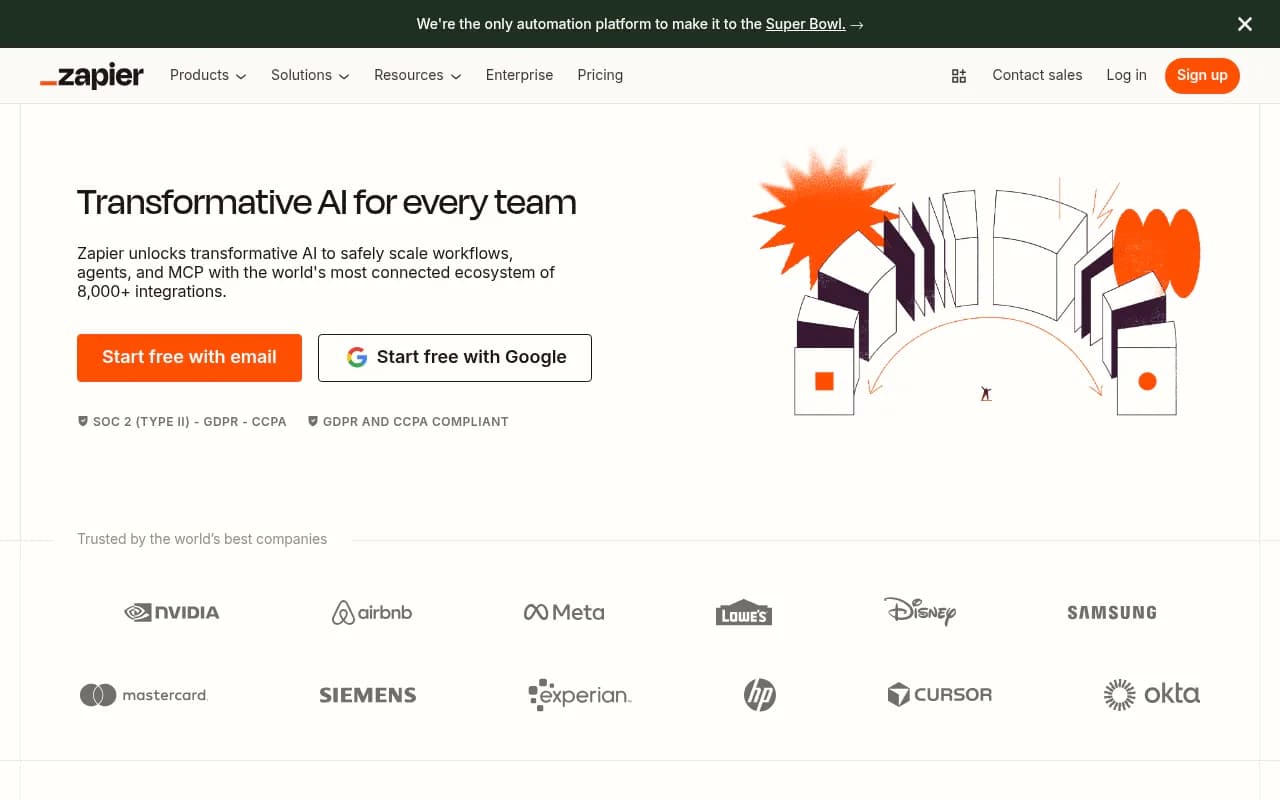
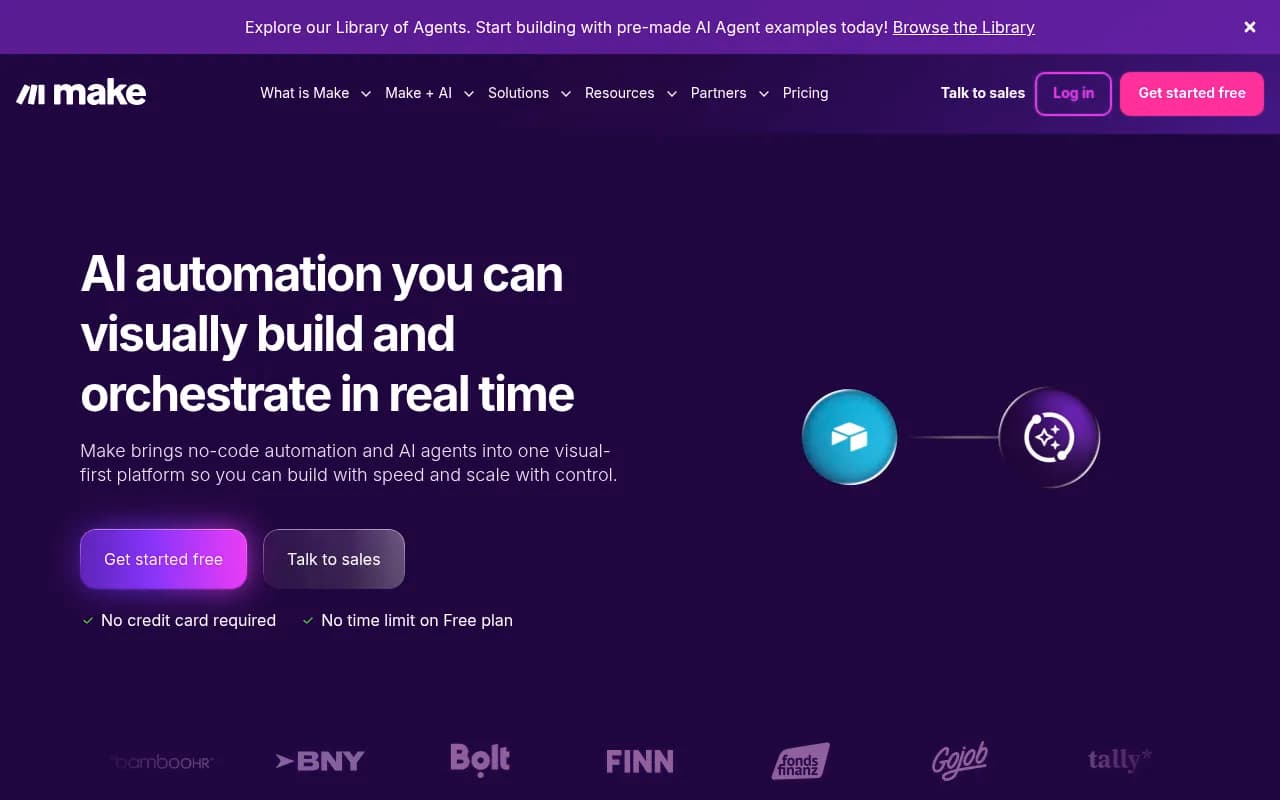
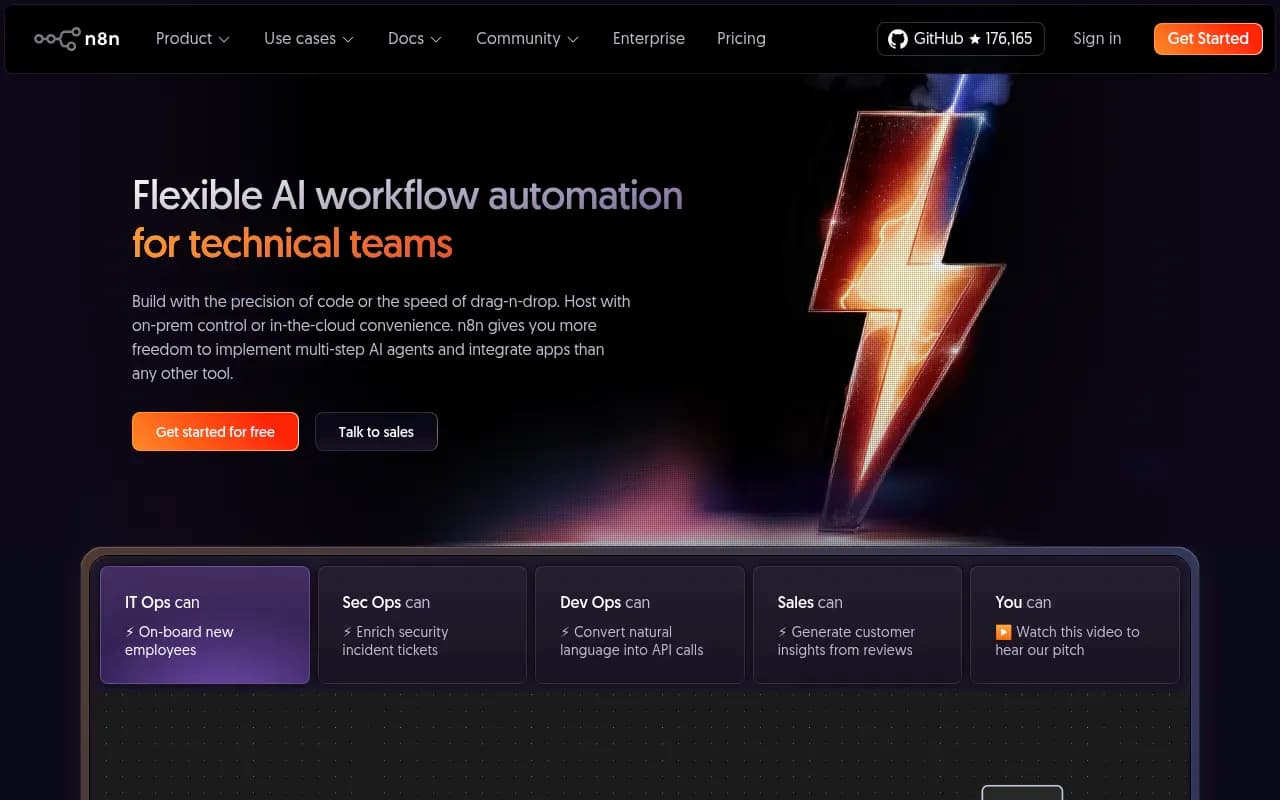
- Automation platforms. Zapier, Make or n8n can take a webhook or a Google Sheets update and post a summary message to Slack. This only works if your data is in Sheets or accessible by API, and you give up the visual report.
- Skip Data Studio entirely. Some trackers push reports to Slack themselves. Promptwatch supports scheduled chats and briefings delivered in Slack, plus scheduled PDF reports of any dashboard, which suits teams that mostly want the summary in-channel and do not need a custom Data Studio build.
| Approach | Cost | Setup effort | Output |
|---|---|---|---|
| Data Studio Pro to Slack | Pro subscription | Low | Rendered report pages |
| Email schedule forwarded to Slack | Free | Medium | PDF attachment |
| Zapier, Make or n8n | Tool plan | Medium to high | Text summary or link |
| Tracker-native Slack briefings | Included in tracker plan | Low | Text summary or PDF |
Step 7: Keep the report honest over time
Review the first four weeks
The first month tells you what is noise. If a metric jumps 30 points one week and returns the next, drop it from the headline row or smooth it with a four-week average.
Add traffic, not just mentions
Visibility scores tell you whether AI names you. They do not tell you whether it matters. If your tracker can attribute AI-referred sessions, add a scorecard for them. If it cannot, bring in GA4 as a second data source in the same report and blend by date.
Document your prompt set changes
If you add or retire tracked prompts, your visibility score moves for reasons unrelated to AI behavior. Log prompt set changes in the same annotations table you use for model updates.
Pair it with outside context
When you need to explain a sudden shift to leadership, external data helps. Promptwatch's research hub at promptwatch.com/data tracks things like citation share by content type and crawler behavior, which are useful for separating platform-wide changes from site-specific ones.
A sample weekly checklist
- Monday morning, the report lands in the channel.
- Someone owns a two-line reply: what moved, and what we are doing about it.
- Moves on Perplexity or AI Overviews get investigated first.
- Copilot swings get logged and watched, not acted on.
- Anything that holds for three or four weeks goes on the content or technical to-do list.
Troubleshooting
- Report arrives empty or stale: check the date range control is relative, not fixed, and that the data source credentials have not expired.
- Schedule option is missing: you are probably not on a Pro subscription, or Slack delivery is disabled by your Workspace admin.
- Channel not found: use Manual ID and confirm the ID prefix matches the channel type.
- Custom message option greyed out: the report sits in the Owned by me folder.
- Numbers disagree with the tracker's own UI: check you are filtering the same country, language and engine, and that your connector refresh has run.
Final word
The tooling here is the easy part. The value comes from one decision: a single page, split by engine, annotated for known platform changes, delivered to the same channel every Monday. Build that first with whichever tracker you already use, and upgrade the plumbing only once the team actually reads it.