Key takeaways
- Approved in Merchant Center means eligible, not guaranteed to show. Google Shopping is a feed-driven auction. AI Mode picks products using Google's Shopping Graph, Gemini and query fan-out, so thin data that survives in classic Shopping can get skipped.
- Most fixes are feed hygiene: accurate GTIN/brand/MPN, a valid Google product category, descriptive titles, complete variant attributes, clean images and a price that matches the page.
- Google has not published AI Mode shopping eligibility rules as far as I could find. Everything below about AI Mode is inferred from Google's general product data guidance and merchant-side evidence, not from an official checklist.
- Check the basics first (Visibility column, Needs attention tab, the surface you're measuring), then work through the seven causes in order.
- Measure AI visibility separately from Shopping impressions, because Merchant Center won't tell you whether AI Mode ever mentions you.
First, be honest about what you're comparing
Google Shopping and AI Mode are not the same pipeline. Classic Shopping ads and free listings match a query to your feed attributes and, for ads, run an auction. AI Mode answers a conversational question, often a long one like "backpack for a hiking trip in the Pacific Northwest", and builds a set of product suggestions around attributes such as weather resistance, size, materials, price, reviews and availability. Shopify's guide to Google AI shopping describes it this way, and Channable says the system leans on the Shopping Graph, Gemini and query fan-out.
Two caveats before we go on. First, I couldn't find a Google primary document that states AI Mode shopping eligibility rules, so "your feed equals AI Mode eligibility" is an inference, not a documented fact. Second, Channable's claim that the Shopping Graph holds more than 50 billion product listings is a secondary-source number; I'd verify it with Google before repeating it.
What we do know from Google's own documentation is that your product data specification is the foundation. Disapproved products don't appear in Shopping ads or free listings, and the same data feeds everything downstream.
Rule out the boring stuff first
Before blaming AI Mode, do the three checks RexTheme recommends for approved-but-invisible products, in this order:
- The Visibility column in Merchant Center. A hidden product won't show, whatever its status says.
- The Needs attention tab. Fix Prioritized fixes first. If that list is empty, turn the filter off and read the full list. Warnings don't block approval, but they can limit reach.
- Where you're measuring. Free listings need the program enabled, and Shopping ads also need a linked, active, funded campaign.
If impressions show on one surface and not another, fix that surface's setup before you rewrite product data. A product can be perfectly healthy and still look dead because you're checking the wrong report.
The 7 causes at a glance
| # | Cause | Where to confirm | Typical fix |
|---|---|---|---|
| 1 | Stale feed or stock data | Merchant Center feed status, stock mismatches | Automatic scheduled updates, more frequent fetching |
| 2 | Missing or wrong identifiers | Needs attention: missing or incorrect GTIN | Add accurate GTIN, brand and MPN |
| 3 | Wrong Google product category | Needs attention: invalid value | Use a valid ID or full path that fits |
| 4 | Price or availability mismatch with the page | Needs attention: mismatched price | Match page and feed, refresh |
| 5 | Thin titles and product details | Often nothing flagged | Rewrite titles and fill attributes |
| 6 | Incomplete variants and images | Product data spec, image review | Add variant attributes, clean images |
| 7 | Weak page-level data and no AI tracking | Page markup, AI visibility tracking | Matching structured data, monitor prompts |
Cause 1: Your feed is stale
AI systems that want to recommend a product with price and availability need those fields to be current. If you changed a price in the store but the feed still carries the old one, Google keeps receiving the old price and soon finds a mismatch when it crawls the page. Out-of-stock items that are still marked available get flagged the same way.
The Shopping Graph reportedly refreshes at enormous scale (Channable cites over 2 billion listings updated every hour), so a feed that syncs once a week is behind the curve before you start.
Fix it:
- Schedule automatic feed updates daily, or more often if prices and stock move fast.
- In Merchant Center, set a more frequent fetch schedule for the feed.
- Both sides matter. Updating the plugin export without telling Google to fetch it more often only fixes half of it.
- One BigCommerce merchant thread suggests checking Settings, then Automatic item updates, because those can override feed values with what Google crawls on the page. Review that setting if prices keep flipping.
Cause 2: Identifiers are missing or wrong
Google uses brand, GTIN and MPN to work out exactly what you sell. Incorrect GTINs are among the common data problems Google lists. For AI Mode this matters even more: a conversational answer needs to know that your item is the same physical product as the one in reviews, other merchants' listings and the manufacturer's page. Without identifiers, your product is harder to match, and Shopify notes it may be less likely to appear in relevant queries.
Fix it:
- Add the manufacturer GTIN where one exists. Don't invent one or reuse a SKU.
- Fill brand on every product, and MPN where the manufacturer uses it.
- Only set identifier_exists to false when the product truly has no GTIN, such as custom or handmade goods.
- Audit variants separately. Each variant usually has its own GTIN.
Cause 3: The Google product category is wrong
A wrong value can mislead Google or keep a product from appearing. Channable lists the product category and product type among the attributes weighed most heavily, so a mis-mapped category is more than a cosmetic flaw. If your plugin maps your store categories to Google's taxonomy automatically, spot check it.
Fix it:
- Export the affected products to CSV and compare against Google's product taxonomy file.
- Use the most specific valid category, either the numeric ID or the full path.
- Fill product_type with your own category structure too, so the product is described in both Google's language and yours.
- Re-submit the feed after changes.
If you have hundreds of products, paste the CSV, the taxonomy file and your store's category list into ChatGPT or Claude and ask it to propose a mapping. Then review the output by hand. It's good at this but not perfect.
Cause 4: Price or availability doesn't match the page
Google compares the feed price with the price on your product page, and a mismatch can disapprove the product. Sale prices and their dates are a common trigger. Shipping and tax are another: a Hacker News thread about AI Mode showing higher prices than classic search had commenters arguing that Google doesn't always have the merchant's full shipping and tax data, so what it displays may not match final checkout. That thread is anecdotal and several commenters couldn't reproduce the claim, so treat it as a reminder, not evidence. The practical lesson: make shipping, tax and price data in the feed match what a visitor sees.
Fix it:
- Compare feed price, sale_price and sale dates against the live page for a sample of products.
- Make sure the page shows the price in server-rendered HTML, not only after JavaScript runs.
- Keep availability in sync with real stock.
- Review shipping and tax settings in Merchant Center.
Cause 5: Titles and details are too thin
This is the one that hides behind a clean Needs attention tab. Thin data is not a policy error, so nothing gets flagged. It just quietly loses.
Google Shopping has no keyword targeting. It reads titles and descriptions to decide when to show a product. AI Mode does something similar with far more natural-language queries. Internal model names and creative brand names are the usual culprits.
Example: "HydraDew Elixir No. 3" tells a model almost nothing. "HydraDew Hyaluronic Acid Hydrating Face Serum with Vitamin C for Dry Skin" connects the product to what people actually ask for. Same logic for "Black Boots" versus "Women's Black Leather Boots, Size 10".
Fix it:
- Lead with brand, then product type, then the attributes a shopper would filter by: color, size, material, gender, use case.
- Write descriptions in plain sentences that answer likely questions, like what it's made of, who it's for and what it's compatible with.
- Pick your 2 or 3 most worrying products, pull their feed data and ask an AI assistant to flag titles that lack type, brand, attributes or search intent.
- Compare against the products that do show for the same query and note what they include that you don't.
Cause 6: Variants and images are incomplete
Channable's advice is blunt: product images need to show the item clearly, and the feed needs to keep variant details like size, color, material, gender and product type accurate. That ties to Google's product data specification:
- Apparel requires color, size, gender and age_group in the US, UK, France, Germany, Japan and Brazil, and free listings require them for Apparel & Accessories (category ID 166).
- item_group_id is required for variants. Keep it stable across updates, using the parent SKU where possible.
- Color rules: no "multicolor", "various" or "N/A", and separate multiple colors with a slash.
- Promotional overlays on images are a policy problem. Images need an unobstructed view of the product with no added promotional elements.
Shopify also lists generic or placeholder images and incomplete product data among the usual disapproval causes. Virtual try-on and visual discovery in AI Mode only work if the image is a clean product shot.
Fix it:
- Replace lifestyle collages and badge-covered images with a clean primary image.
- Fill every required and recommended field you can, not just the minimum.
- Group variants with a stable item_group_id.
Cause 7: The page itself and AI visibility are not being checked
This one is less about the feed. Channable lists structured data that matches the Merchant Center data as something Google weighs. If your page's Product schema says one thing and your feed says another, you feed mixed signals to the system. A report quoted in a ProductRise study circulating on social media suggests stores with inconsistent data, missing attributes or duplicated listings send poor signals to AI systems. That's a secondary source, but it matches common sense.
Then there's the measurement gap. Merchant Center reports Shopping impressions. It doesn't tell you whether AI Mode named your product when someone asked a long question. And Google's own surfaces carry a lot of weight: in Promptwatch Data's June 2026 AI Mode citation report (May 31 to Jun 26, 2026), google.com earned 7.31% of AI Mode citations, more than YouTube (2.88%) and Reddit (2.52%) combined, and Google-owned properties captured over 10%. That report doesn't measure Merchant Center feed data directly, so it's not proof that feeds drive AI Mode shopping. It does suggest that Google-owned surfaces are worth keeping in order.
Fix it:
- Make Product schema (price, availability, GTIN, brand, image) match the feed exactly.
- Keep specs, prices and positioning on product pages complete and factual. For comparison, Promptwatch's ChatGPT content type data (Sep 28 to Oct 4, 2026) shows product pages as the most cited type at 22.4%, and 26.0% for commercial prompts. That's ChatGPT, not AI Mode, but it points the same way.
- Track a set of buying prompts in AI Mode and see whether you appear. Tools like Promptwatch can monitor Google AI Mode and ChatGPT answers by prompt, so you can tell if a feed fix moved anything.
If you want to compare other options, the GEO software directory at bestgeosoftware.com lists alternatives.
What if everything checks out?
Sometimes the data is fine and you still don't show. Honest reasons:
- New account or campaign. A new Shopping campaign can take up to two weeks to learn, per Google.
- Demand and competition. Search your product on Google Shopping, see who appears, and compare their titles, images and prices to yours.
- Price position. A price well above market loses auctions. Check price competitiveness reports in Merchant Center.
- Category fit. Channable notes Google doesn't name product categories that perform best in AI-driven shopping, so don't assume a category is favored or penalized.
A practical order of work
- Confirm visibility, Needs attention and the surface you're measuring.
- Fix feed freshness and price/stock mismatches.
- Add identifiers and correct categories.
- Rewrite titles for your top 20 products and fill attributes.
- Clean up images and variant grouping.
- Align Product schema with the feed.
- Track AI Mode prompts weekly, not daily. Shopping features and citation patterns move in steps, so give changes time before judging them.
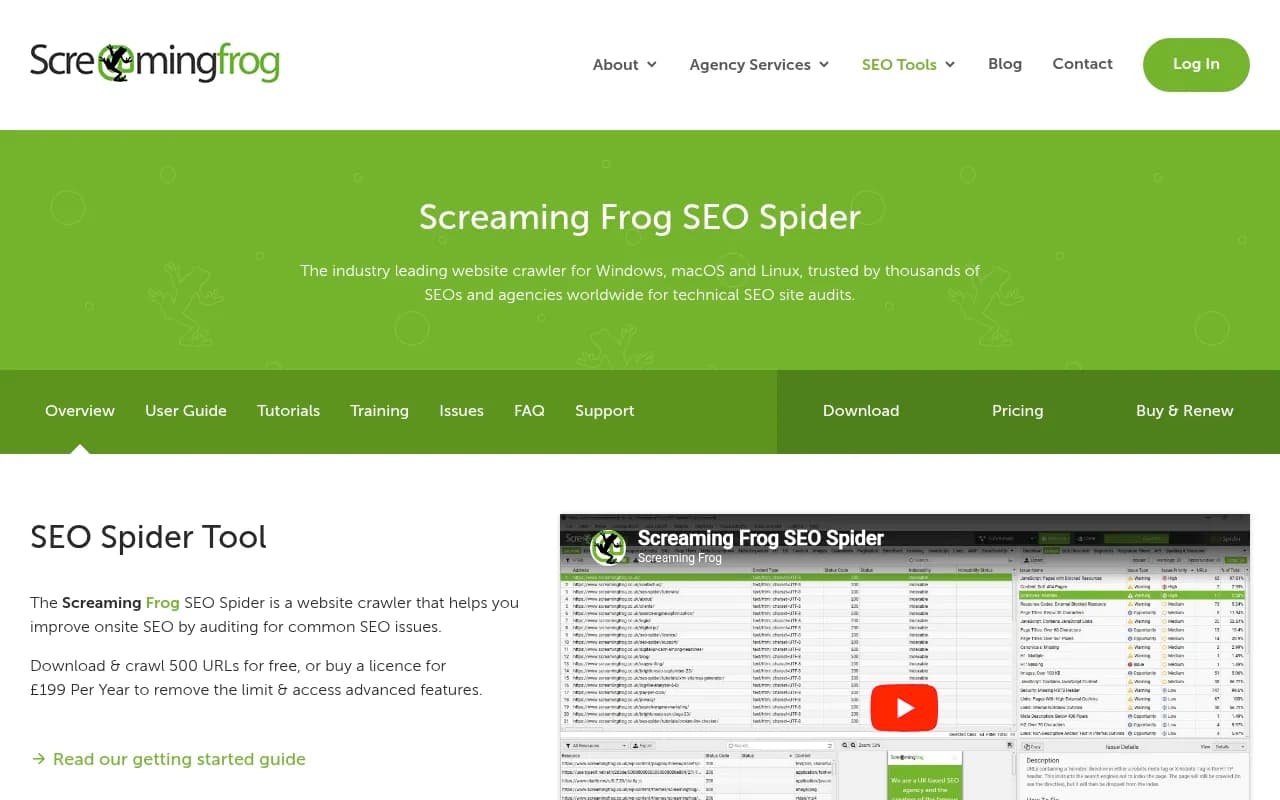
To scan your product pages for crawl and markup issues before you resubmit, a crawler such as Screaming Frog works well.
You'll also want to watch Search Console for Google-side performance of the pages themselves.
Bottom line
Approved only means eligible. AI Mode appears to reward the same things classic Shopping rewards, just more strictly: complete, consistent, current data and products that are easy to identify. Fix the feed, match the page, then measure AI Mode on its own terms. I'd expect gains in weeks, not days, and I'd treat any promise of guaranteed AI Mode placement as marketing.