Key takeaways
- MCP (Model Context Protocol) lets Claude or Cursor call your AI visibility platform's tools directly, so you ask a question in plain English and get live data back instead of exporting a CSV.
- Setup comes in two flavors: OAuth (paste a URL, sign in, approve) or an API key. OAuth is easier and safer, so use it when the vendor offers it.
- In Claude you add a custom connector. In Cursor you add a
urlentry tomcp.jsonand click Connect. - Good prompts state a date range, ask for aggregates before breakdowns, and ask for the two or three most actionable findings.
- MCP is not perfect. Verify any number you plan to put in a report against the dashboard.
What MCP actually does for you
Most AI visibility dashboards make you click through filters to answer a simple question like "did our share of voice in Perplexity drop last month?" MCP removes the clicking. It plugs an AI model into your data so the model can pull answers itself.
The mechanics are simple. The assistant asks the server what it can do and gets back a list of actions (called tools). It picks one, calls it, reads the result, and answers in plain language. You never write a query. You just need to know what to ask.
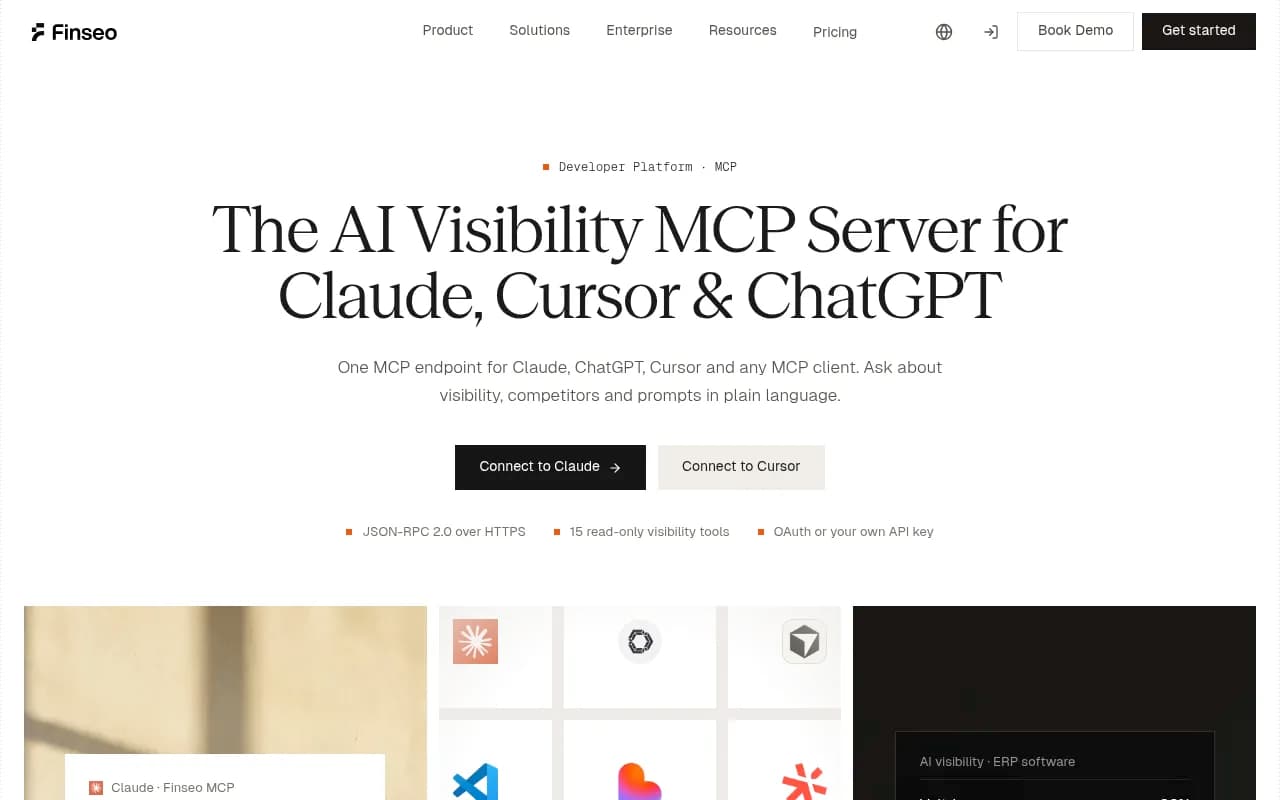
This is the same idea Peec AI describes in its MCP guide for SEOs and GEOs, and it is now common across the category. Finseo advertises 15 read-only tools over JSON-RPC 2.0 on HTTPS. KIME, Cite42, llemmy, and AuditAE all ship their own versions. The names differ, the flow is the same.
One caveat before we start. The author of that Peec AI guide says outright that MCP "is not a perfect solution." I agree. It is a fast way to explore data, not a substitute for checking the source of any number that ends up in a client deck.
Before you connect: pick your server and your client
You need two things: an AI visibility platform that exposes an MCP server, and a client that can talk to it.
Choosing the client
Claude (web or Desktop) and Cursor both work, and they suit different people.
- Claude is the better fit for marketers and SEOs. There is a native Connectors menu in your account settings on the web and inside Claude Desktop. Hosted servers work in both.
- Cursor suits people who already live in a code editor, or who want visibility data next to the repo they are changing. If an AI crawler cannot read a page, you can ask about it and fix the template in the same window.
- Claude Code (the terminal tool) is a third option and uses a one-line command to add servers.
A small trap: servers that run locally on your machine, like Screaming Frog's MCP package, need the Claude Desktop app. Web-based clients cannot reach programs running on your computer. Hosted servers do not have this problem.
Choosing the server
Here is how a few of the vendors found in my research set things up. I have not re-verified each of these, and I found no public pricing for any of the MCP servers themselves, so check with the vendor.
| Vendor | Auth | Setup route |
|---|---|---|
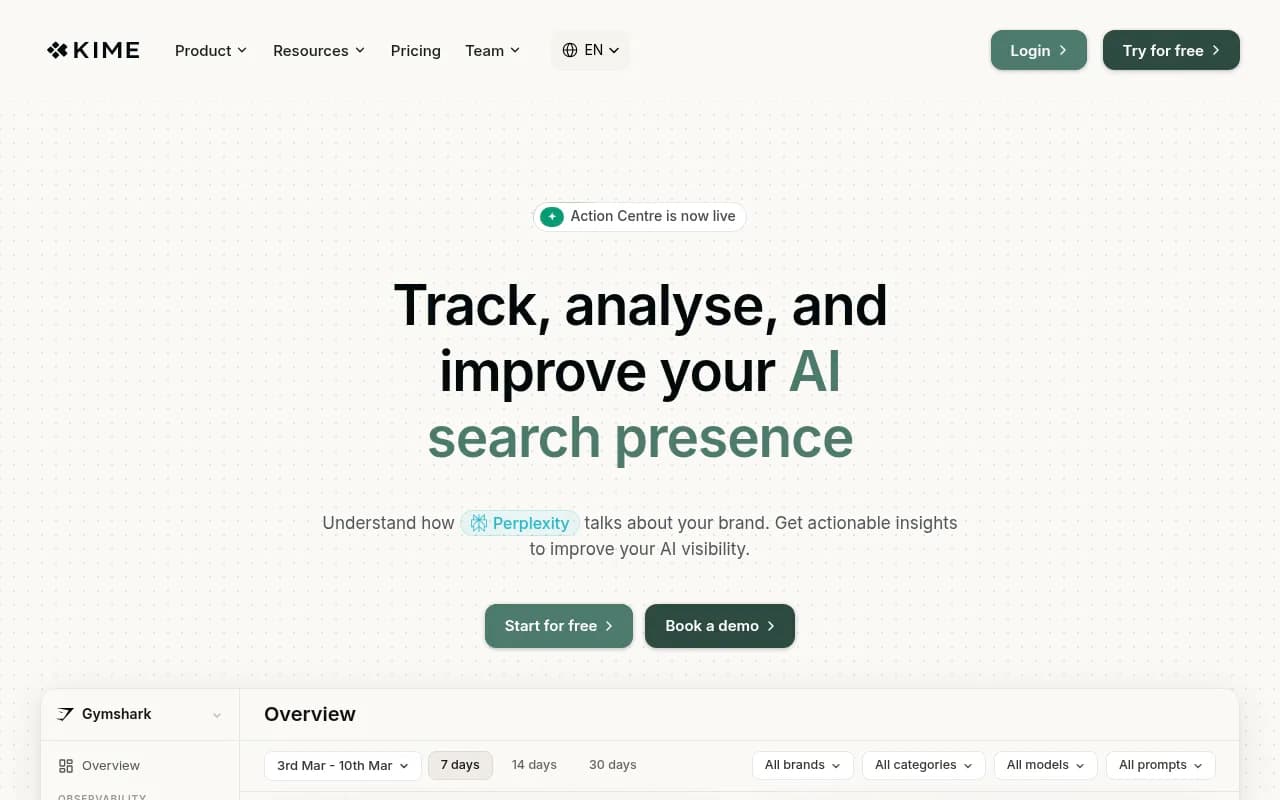
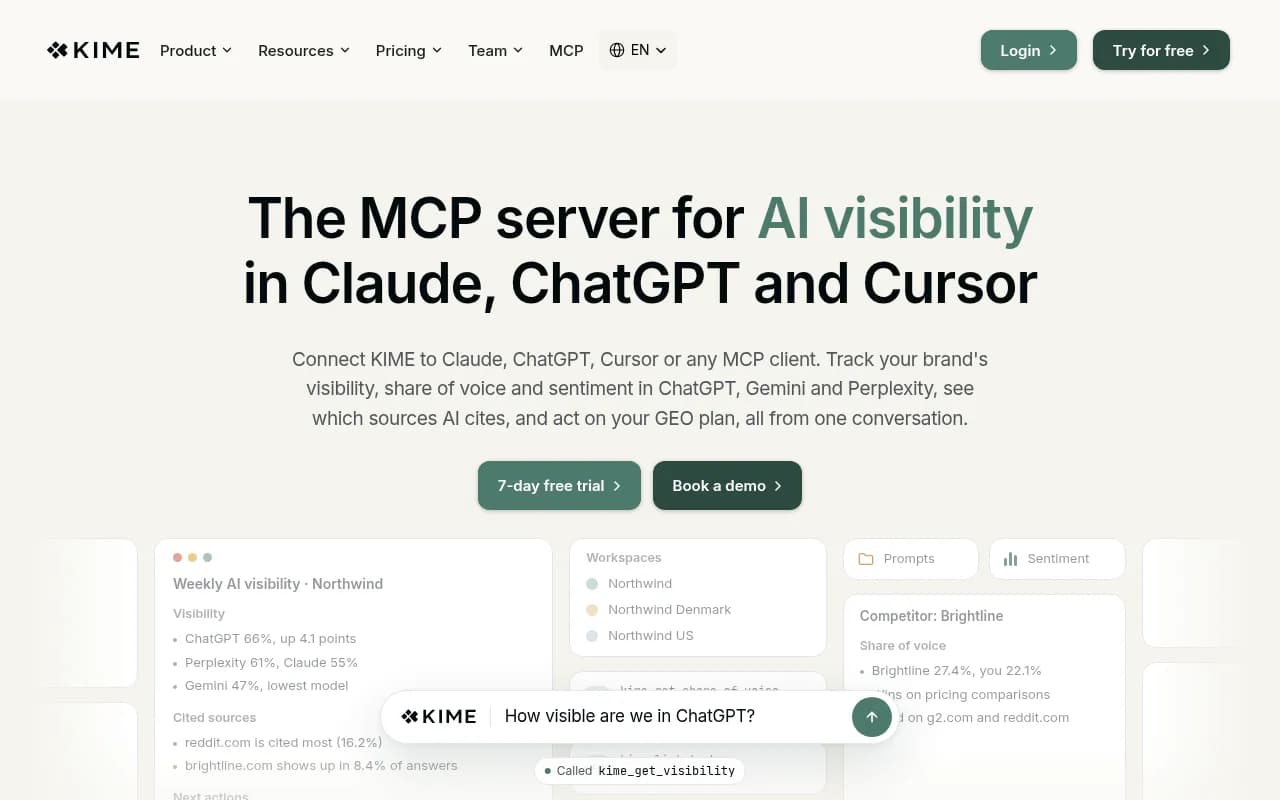
| KIME | OAuth, no API key | Server URL https://mcp.kime.ai/mcp pasted into a custom connector |
| Cite42 | OAuth | claude mcp add command, then sign in with /mcp |
| Finseo | OAuth or your own API key | 15 read-only tools, one endpoint for Claude, ChatGPT, Cursor |
| llemmy | API key | Generate key, add server to client config |
| AuditAE | API key | Add to client config, restart client |
| Peec AI | Listed in Claude's connector directory | Pick the official connector from the list |
| Promptwatch | OAuth or API key | Hosted MCP server, 110+ read and write tools |
For a full-stack option, Promptwatch runs a hosted MCP server with more than 110 read and write tools, and connects to Claude, Claude Code, ChatGPT, Cursor, Lovable, Codex, and any MCP client with one-click OAuth or an API key. The read-and-write part matters: through MCP you can query visibility data, but also queue content, move items on the Action Board, or build a dashboard. The REST API and MCP docs live at promptwatch.com/docs.
KIME also has a hosted server and a clean OAuth setup, which makes it a good example of what a no-API-key flow looks like.
The rest of this guide uses generic examples. Swap in your vendor's real server URL, which is in their docs.
Connecting to Claude
This is the easiest path, and it takes about five minutes. The Peec AI author reports connecting several different MCPs in about that time.
Option 1: custom connector (OAuth)
The exact labels shift between Claude releases, but KIME's documented flow is a good template:
- Open Customize, then Connectors.
- Click the plus button, then Add custom connector.
- Name it after the vendor and paste the server URL.
- Click Add, then Connect.
- A browser window opens. Sign in to the visibility platform, pick the organization or workspace the assistant should work in, and approve access.
The assistant only sees what your account can see. That is worth remembering when you are deciding who on the team should connect it. An analyst with access to one client's workspace will not leak another's.
If your vendor is in the official directory (Peec AI is), skip the custom step. Open the connector list and select the official one.
Option 2: Claude Code from the terminal
Claude Code adds servers with a single command. Cite42's documented example looks like this:
claude mcp add --transport http --scope user cite42 https://mcp.cite42.dev && claude mcp login cite42
The --scope user flag makes the server available across all your projects rather than just the current folder. After adding, restart Claude Code and sign in with /mcp.
Option 3: API key
Some vendors, like llemmy and AuditAE, want an API key. The pattern is: generate a key in the vendor's settings, add the server to your client config with the key, then restart the client. Keys are scoped, so create a read-only key if you only plan to query. Keep it out of screenshots and chat logs.
Test the connection
Do not start with a hard question. Start with something that proves the plumbing works. KIME suggests "List my KIME workspaces." Equivalent for any vendor: "List my projects" or "What tools do you have access to?" If the answer comes back with real names, you are connected.
Connecting to Cursor
Cursor reads a file called mcp.json. A remote server needs very little. This is the minimal shape, using Linear's public server as the documented example:
{
  "mcpServers": {
    "linear": {
      "url": "https://mcp.linear.app/mcp"
    }
  }
}
For your visibility platform, replace the name and URL. For example:
{
  "mcpServers": {
    "ai-visibility": {
      "url": "https://mcp.your-vendor.com/mcp"
    }
  }
}
The OAuth flow in Cursor
Cursor has supported OAuth for MCP since v1.0 in June 2025, so you rarely need to handle tokens yourself.
- Add the server URL to
mcp.json. - Open Cursor Settings and go to Tools & MCP. The server shows a "Needs authentication" label and a blue Connect button.
- Click Connect. Your browser opens the vendor's login page.
- Approve access.
- The browser redirects back to Cursor, which exchanges the code for tokens using PKCE.
- The server's tools appear in the tools list.
If the tools list stays empty, the usual culprits are a typo in the URL, a stale session, or approving access for the wrong organization.
Using an API key in Cursor
For remote servers that want a key, Cursor supports static headers. Use an environment variable reference rather than the raw key:
{
  "mcpServers": {
    "ai-visibility": {
      "url": "https://mcp.your-vendor.com/mcp",
      "headers": {
        "Authorization": "Bearer ${env:VISIBILITY_API_KEY}"
      }
    }
  }
}
The key lives in your shell environment, not in a file that might get committed. Cursor's docs say ${env:VAR} interpolation works in these values.
Static OAuth, for the stubborn cases
Some providers do not support dynamic client registration. For those, Cursor lets you add an auth object with a CLIENT_ID (required), CLIENT_SECRET (optional), and scopes (optional). If you leave out scopes, Cursor discovers scopes_supported from the server's /.well-known/oauth-authorization-server endpoint. You register Cursor's redirect URLs with the provider: https://www.cursor.com/agents/mcp/oauth/callback and http://localhost:8787/callback. If the provider only hands out refresh tokens for offline_access, add that scope too.
Most people will never need this. If your vendor's docs do not mention it, skip it.
Do not commit secrets
This is the pitfall that actually bites teams. An mcp.json in a repo with a pasted API key is a leak waiting to happen. Use ${env:VAR} references, and prefer OAuth for remote servers whenever it is offered.
What to ask once you are connected
This is where the setup pays off or doesn't. Vague questions get vague answers. A few habits from Peec AI's guide, plus my own experience:
- State the exact date range. "Last 30 days" is ambiguous when the model has to translate it into a query. "October 1 to October 31, 2026" is not.
- Frame the aggregate numbers before the breakdowns. Ask for overall visibility first, then by model, then by competitor.
- Ask for the two or three most actionable findings. Otherwise you get a wall of observations.
- Ask for aggregation to be done by the tool rather than eyeballed. If the server can return totals, tell the model to use them.
Prompts that work
These are adapted from the example questions vendors publish, and they translate to nearly any platform:
- "For October 1 to October 31, 2026, what is our overall visibility, and how does it split across ChatGPT, Gemini, Perplexity, and Claude?"
- "Which competitors have the highest share of voice on our tracked prompts, and where do they beat us?"
- "What is driving negative sentiment about our brand in AI answers? Quote the specific claims."
- "Which sources does ChatGPT cite when our brand comes up, and which of our pages are among them?"
- "Can GPTBot and ClaudeBot read our site? List any pages where they hit errors."
- "What are the three most actionable things we should do next to get mentioned more?"
Add context from outside research
A good way to sanity-check what your tool returns is to compare it to a public benchmark. Promptwatch's average sources per response report, based on 26B+ analysed data points and dated September 2025, found ChatGPT cites about 5 sources per web-search answer, Google AI Overviews about 10, and Perplexity almost exactly 10 every day. If your connected assistant tells you ChatGPT cites 25 sources per answer for your prompts, something is off with the query or the filters. The report is older, so treat it as a rough yardstick, and check Promptwatch Data for newer citation research.
Questions you might then ask: "How many sources does each engine cite for my tracked prompts?" and "Which of my pages are in the top five slots on ChatGPT?"
Going beyond questions: workflows worth trying
Once the connection is stable, a few uses beat clicking around a dashboard.
Monthly report in a spreadsheet
KIME markets a "monthly AI search report in Sheets" workflow using Cursor. The generic version: ask the assistant to pull visibility, share of voice, and cited sources for the month, then format it as a table or CSV you can paste. It is quick for a first draft, and you can add commentary yourself.
Pair visibility data with your codebase
In Cursor, you can ask about crawler errors and then ask the same assistant to look at your robots.txt or rendering setup. If the data says PerplexityBot is blocked, the fix is one file away. This is the best argument for using Cursor over Claude for technical SEO teams.
Scheduled briefings
Some platforms go further. Promptwatch's Agent Chat can run scheduled chats delivered in Slack, and its MCP server can build dashboards or queue content, not just read. If your platform supports write actions, set a rule: the assistant must tell you every value it plans to change and wait for approval.
When there is no MCP
If your tool has an API but no MCP server, you can still describe what you want in plain language and have Claude Code write the script that talks to the API. It is slower and you own the code, but it works.
Common problems and fixes
| Symptom | Likely cause | Fix |
|---|---|---|
| Tools list is empty in Cursor | URL typo or unfinished OAuth | Recheck the URL, click Connect again |
| "Needs authentication" will not clear | Browser blocked the redirect | Allow the Cursor redirect, retry |
| Assistant sees the wrong workspace | Approved the wrong organization | Disconnect and reconnect, pick the right org |
| Local server not found from claude.ai | Web clients cannot reach local programs | Use Claude Desktop |
| Numbers look odd | Ambiguous date range or filters | State exact dates, ask for the tool's totals |
| Server added but nothing happens in Claude Code | Client not restarted | Restart and sign in with /mcp |
Security and team habits
A connected assistant has the same access you do, so a few rules help.
- Prefer OAuth. You can revoke access from the vendor without rotating keys everywhere.
- Use read-only or scoped API keys when you only need to query.
- Do not paste API keys into chat. Put them in environment variables.
- If your vendor logs changes, check that MCP-originated actions are labeled. Promptwatch's audit log, for example, shows whether a change came from the dashboard, the API, an MCP client, or Agent Chat.
- For teams, agree on who connects the assistant and to which workspace, especially at agencies with client data.
- Ask security questions early: Promptwatch is ISO/IEC 27001 certified and GDPR compliant, which tends to matter in procurement. Ask any vendor the same.
Where to go from here
Pick one platform and spend an afternoon with it before comparing five. The setup is the easy part. The skill is asking questions that produce answers you can act on.
If you are still choosing which visibility platform to connect, the GEO software directory lists options by category, and Promptwatch offers a 7-day free trial and a free AI visibility report at promptwatch.com/ai-visibility-report if you want data to query right away. Confirm current pricing at promptwatch.com/pricing, since MCP availability can vary by plan with other vendors too.
A last piece of advice: keep the dashboard open next to the chat for your first week. When the assistant's number matches the dashboard three times in a row, you can start trusting it for exploration. Keep checking before anything goes to a client.