Key takeaways
- Webflow connects through OAuth, Framer through a project URL plus API key, and WordPress through an official plugin and a sync token. All three can take a draft or go live.
- Five fields map on Webflow and Framer: title, description, body, featured image and publish date. WordPress adds a default category and author set once.
- The real difference is what happens at publish time. Webflow publishes an item without a full rebuild, Framer triggers a site publish, and WordPress simply creates the post.
- Publishing is only half the job. Content needs a refresh every 8-14 weeks to stay cited, so the pipeline has to be repeatable and trackable.
- Keep a review step in front of everything, at least until your field mapping has proven itself on a handful of articles.
Why the CMS connection matters for GEO
Most teams treat the CMS as the boring last step. Write the thing, paste it in, fix the formatting, hit publish. For a blog that ships twice a month, fine. For GEO work, where you are publishing against specific prompt gaps and then refreshing pages on a schedule, that manual step becomes the bottleneck.
Promptwatch Data tracked every page ChatGPT cited on July 6, 2026 for 90 days. Product pages, reviews and how-tos hit their half-life at roughly 74-77 days. News lost half its pages within 36 days. Landing pages and docs held on much longer, with 78% and 76% still cited after 30 days. The practical reading: pages decay, and the ones that decay fastest need the most frequent touching. If every update means a copy-paste session, it will not happen.
That is the lens for this guide. I am less interested in which platform has the prettiest editor and more in which one makes it easy to push content in, review it, publish it, and then find out whether AI actually read and cited it.
The field-mapping details below come from how Promptwatch connects to each CMS, since that is a documented, current example of an automated publishing path. The general principles apply to any pipeline you build yourself with an API, Zapier or n8n.
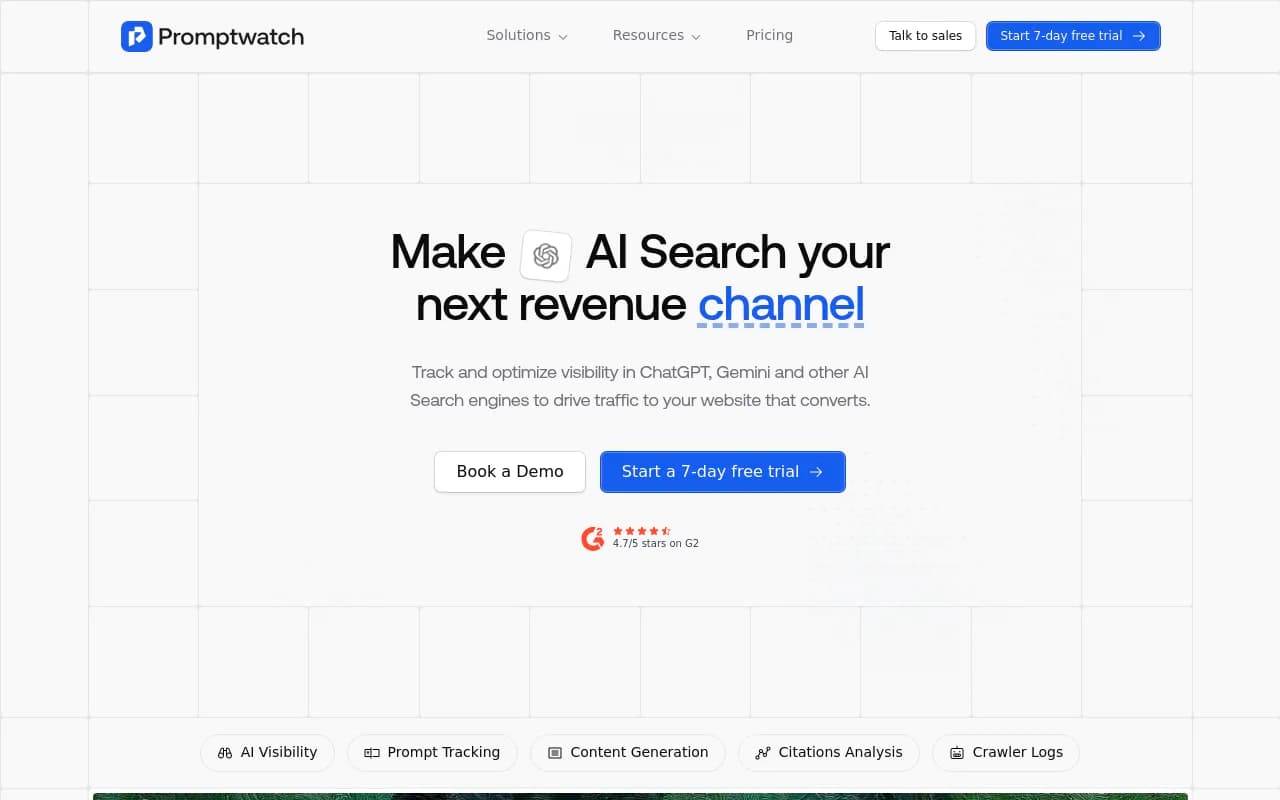
What gets mapped, and why it matters
Whatever tool writes the content, a CMS needs the same handful of things. Get the mapping wrong and you get articles with no meta description, a body full of stray HTML, or a featured image hotlinked from somewhere that will break next quarter.
The five fields that carry the load:
- Title
- Description (the meta description or excerpt)
- Body
- Featured image
- Publish date
On Webflow and Framer, all five map automatically in Promptwatch's connection. Anything else on your collection, like categories, references or a custom text field, is where teams usually get stuck. Promptwatch's changelog notes that connecting Webflow or Framer now suggests how each CMS field should be filled, and AI can fill fields that do not map to anything in the article. CMS help text shows up in the mapping, and AI-filled fields are marked so you can see which values a human did not write.
That last detail matters more than it sounds. If an AI fills a "references" field, you want to know before it goes live.
Webflow
Webflow is the most structured of the three, and that structure helps here. Content lives in CMS collections with defined fields, so mapping is a one-time exercise rather than a per-article chore.
Connection
The connection runs over OAuth. You can start from the Promptwatch app or from the Webflow Marketplace listing. There is no API key to generate, store or rotate, which removes one of the more annoying security chores. You then pick the site and the specific CMS collection to publish into. Details are on the Webflow integration page.
Field mapping
Title, description, body, featured image and publish date map automatically. The featured image uploads into Webflow's own asset library rather than linking to an external URL. I like this a lot. Externally hosted images are a quiet source of broken pages six months later, and Webflow's CDN serves its own assets properly.
If your collection has extra fields (author reference, category, a "key takeaways" rich text block), map them once. Localized collections are supported, which helps if you publish in more than one language.
Drafts and live publishing
Articles can go in as drafts for review inside Webflow, or publish live right away. Live publishing does not trigger a full site rebuild, only the item itself. On a large site that is a real difference, because you are not republishing hundreds of pages to ship one article.
A caveat from my own research: I could not find Webflow's CMS item limits or draft-versus-staged behavior in the platform's own documentation during this pass. Webflow University has a video on CMS single-item publishing that is worth watching before you build a workflow around it. Check your plan's collection limits before committing to volume.
Framer
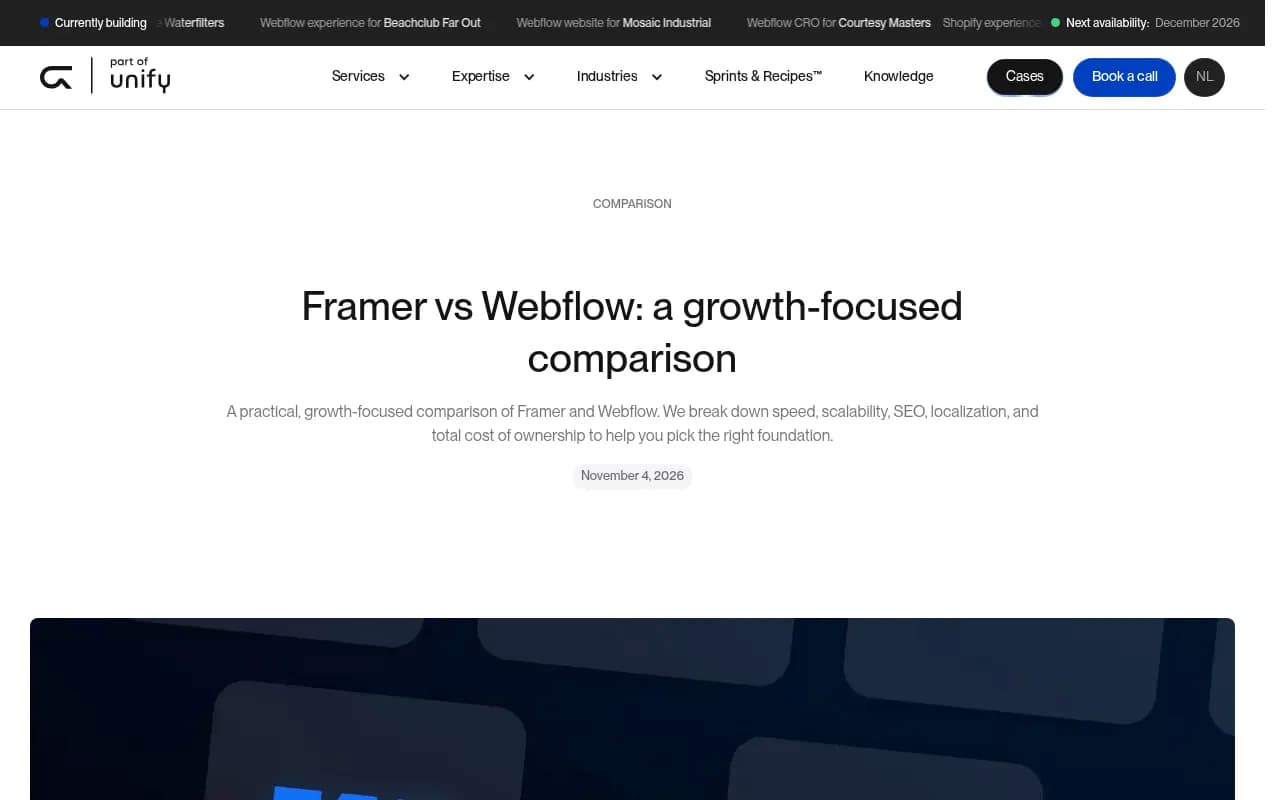
Framer is quicker to stand up and lighter on structure. A growth-team comparison from Groove Digital puts it plainly: Framer suits fast launches and design-led sites, while Webflow is stronger when you are scaling content and workflows. Both offer drafts and preview, so you can review changes before publishing.
Connection
Framer connects with a project URL and an API key. It is a one-time paste that takes a few minutes. There is no OAuth, so you are managing a key, which is a small downside compared to Webflow. See the Framer integration page for the exact steps.
Field mapping
The same five fields map automatically. The notable thing is the content format: the body is delivered as markdown, which Framer renders natively. That means no HTML cleanup, no stray inline styles, and no weird div soup in the output. For GEO content, which tends to be heavy on headings, lists and tables, clean markdown is a genuine advantage.
Drafts and live publishing
Pushing live triggers a Framer site publish, exactly as if you clicked Publish in the editor. That is simple and predictable, but it also means each live push is a whole-site publish. If you ship five articles a day, think about whether you want that cadence, or whether batching drafts and publishing once is cleaner.
WordPress
WordPress is the incumbent, and its setup is the most different of the three. A LinkedIn piece on WordPress vs Webflow vs Framer SEO decisions makes the point that WordPress treats things like multilingual as an architectural choice, while Webflow and Framer give you integrated workflows. That flexibility cuts both ways when you automate publishing.
Connection
You install the official plugin from the WordPress Plugin Directory or as a ZIP, then paste your site URL and the sync token the plugin generates. No API key goes into wp-admin. The plugin has been available to every organization since August 31, 2026, after a waitlist period. Setup is described on the WordPress integration page.
Field mapping and defaults
Because WordPress has a fixed post model, there is less mapping to think about. What you set once is a default category and author, which then apply to all later articles. For headless setups, you can set a public blog path so the live URL resolves to the real front end instead of the WordPress admin domain. If you run headless, do this first, or your tracked URLs will point at the wrong place.
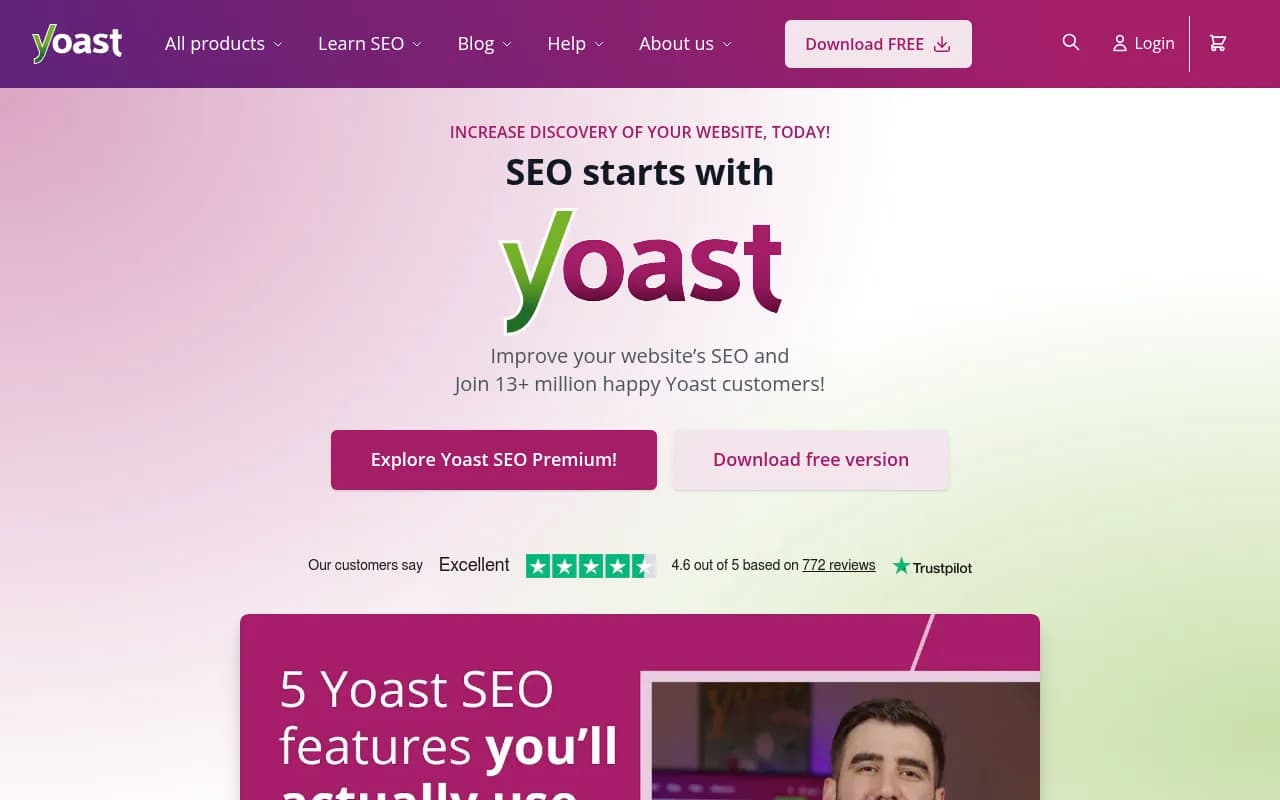
If you already run an SEO plugin like Yoast SEO, check how it handles the meta description on posts created through the plugin, so your description field does not get overwritten by a template.
A bonus on the crawler side
The same plugin captures AI crawler logs (GPTBot, ClaudeBot, PerplexityBot and others) from the server itself, without depending on a CDN. That makes WordPress the lowest-friction path if you want to see whether bots actually read your new pages. More on that below, and on the AI crawler logs feature page.
Side-by-side comparison
| Webflow | Framer | WordPress | |
|---|---|---|---|
| Connection | OAuth (app or Marketplace listing) | Project URL plus API key | Official plugin plus sync token |
| Credentials to manage | None | One API key | Sync token |
| Auto-mapped fields | Title, description, body, featured image, publish date | Same five | Title, body, etc., plus default category and author |
| Body format | Rich content into CMS field | Markdown, rendered natively | Post content |
| Featured image | Uploaded to Webflow asset library | Mapped | Mapped |
| Draft support | Yes, review inside Webflow | Yes | Yes |
| What live publish does | Publishes the item, no full rebuild | Triggers a site publish | Publishes the post |
| Extra field handling | Suggested mapping and AI fill, marked | Suggested mapping and AI fill, marked | Defaults set once |
| Crawler logs from same connection | Via CDN | Via CDN | Via the plugin itself |
| Headless support | Not applicable | Not applicable | Public blog path setting |
The crawler row comes from Promptwatch's documented setups: crawler logs run through a CDN or host integration for Webflow and Framer, and through the official plugin on WordPress.
Drafts, review and the hands-off question
The review model is the same on all three. Articles land in a review inbox, and nothing publishes without approval by default. There is also an optional hands-off mode bounded by a schedule.
My honest advice: start with review on. Run ten articles through it. Look at how the title, description and body render on the real site, check that images came through, and see what the AI-filled fields look like. Only then consider hands-off, and keep the schedule narrow. Auto-publishing five bad articles a day is faster than publishing one bad article, which is not the improvement it sounds like.
A sensible draft workflow looks like this:
- Push as a draft into the CMS.
- Preview on the real template, on mobile too.
- Check the title length, description, and that no field is empty.
- Confirm internal links resolve.
- Publish live, or approve from the review inbox.
Map content type to prompt intent
Once the plumbing works, the next question is what to publish into which template. Promptwatch Data's ChatGPT citation share by content type report (Sep 28 to Oct 4, 2026) breaks it down. Product pages were 22.4% of classified citations, landing pages 16.8%, listicles 13.6%, how-tos 8.7%, documentation 7.5%, comparisons 5.9% and news 5.7%.
It shifts by intent. For commercial prompts, product pages hit 26.0% and landing pages 20.6%. For informational prompts, how-tos and docs show up more (10.7% and 8.5%). For branded prompts, product and landing pages dominate at 23.3% and 22.8%.
What that means for your CMS setup: create separate collections or templates for each type rather than dumping everything into one "Blog" collection. A comparison page and a how-to should not share a layout. And keep documentation public and crawlable, because docs earn real citations.
Promptwatch Data also shows that landing pages, docs, comparisons and listicles only cross the 50% retention line in the final week of the 90-day window, so treat them as long-term assets. Refresh product pages and news more often.
Tracking after you publish
This is where most pipelines stop, and where the value is. A page sitting live tells you nothing. You want to know four things:
- Did an AI crawler fetch it?
- Did a model cite it?
- Did it send any visitors?
- Is it decaying?
Promptwatch tracks each document's draft, staged, published and live URL, then follows the live page through AI crawls, citations and AI traffic. Crawler logs are IP-verified, so spoofed bots are filtered out. If a page is crawled but never cited, you have a content problem. If it is never crawled, you have an access problem, and rewriting the text will not fix it.
You do not need one vendor for every step. Google Search Console is free and covers the classic search side. For AI-specific monitoring, there are plenty of options, and the GEO software directory at bestgeosoftware.com is a decent place to compare them.
The refresh cadence deserves its own calendar entry. Promptwatch's own finding is that content typically needs a refresh every 8-14 weeks to stay cited, and that this only holds up when publishing is not a manual export step. Content Refresh produces git-diff-style updates for existing pages, so you review a change rather than rewriting from scratch.
Which platform for which team
- Choose Webflow if you run structured collections, multiple authors, or localized content, and you want OAuth with no key to manage and item-level publishing.
- Choose Framer if you want the quickest setup, a design-led site, and clean markdown rendering. Accept that each live push is a site publish.
- Choose WordPress if you already have a large content library, a plugin ecosystem, or a headless front end. It also gives the simplest route to server-side crawler logs.
If you are picking a platform from scratch, the broader comparisons (Groove Digital for growth teams, Goodspeed for Framer vs WordPress costs) are worth reading. I did not find current, verified pricing for any of the three platforms, so check their pricing pages directly.
Setup checklist
- Decide your content types and create a template or collection for each.
- Connect the CMS and confirm which five fields map.
- Map or AI-fill extra fields, and mark which are machine-written.
- Set defaults (category, author, public blog path if headless).
- Push three articles as drafts and inspect them on the live template.
- Turn on crawler logs and AI visitor analytics before the first live publish, so you have a baseline.
- Schedule refreshes at 8-14 week intervals, sooner for product and news pages.
For teams that want the whole loop, Promptwatch's Content Agent plans, writes and publishes against visibility gaps built from Content Gap Analysis, with the review inbox in front. The Content Agent is on the Business plan ($579/mo) and above, and the free AI visibility report is a low-effort way to see where you stand first. Confirm current plans on the pricing page.
The short version
The three platforms differ less in what they can publish than in how much friction sits around it. Webflow has the cleanest credential story, Framer has the cleanest body format, and WordPress has the easiest crawler visibility. Pick on that, set a review step, and measure what happens after the page goes live. The publishing step is a solved problem. Knowing whether anyone, human or AI, read the result is the part still worth your time.